How to Use AI Note-Taking Apps to Organize Your Daily Work Tasks: A Practical Guide
I'll be honest with you upfront: for years I was the person with seventeen browser tabs open, three half-filled notebooks, and a sticky note app so cluttered it looked like a digital crime scene. Then about two years ago, I started seriously using AI note-taking apps for daily task management, and it genuinely changed how I work. Not in a gimmicky "AI will solve everything" way, but in a quieter, more practical sense. Let me walk you through what actually works.
Why Traditional Note-Taking Was Failing Me
The problem with regular notes apps isn't storage — it's retrieval. I could write everything down, but finding it later, connecting it to actual tasks, and turning messy meeting scribbles into action items? That was all manual labor. And manual labor is exactly where I'd fall off the wagon.
AI-powered productivity tools close that gap. Instead of just storing information, they help you process it: summarizing, extracting action items, suggesting priorities, and surfacing the right note at the right moment. That last part matters more than you'd think.
Step 1: Pick One App and Commit to It
This sounds obvious, but I wasted months hopping between Notion, Obsidian, Mem, and Reflect before settling down. My advice after all that bouncing around: choose based on your workflow, not on YouTube hype.
What to look for when choosing an AI note-taking app
A few criteria that actually matter. First, does it have a built-in AI assistant that can search your notes conversationally? Second, can it auto-generate meeting summaries and extract action items? Third, does it integrate with your calendar and task manager? I personally landed on Notion AI for team work and Reflect for personal notes, but tools like Mem, Saner, and Circleback have strong features too if your needs differ.
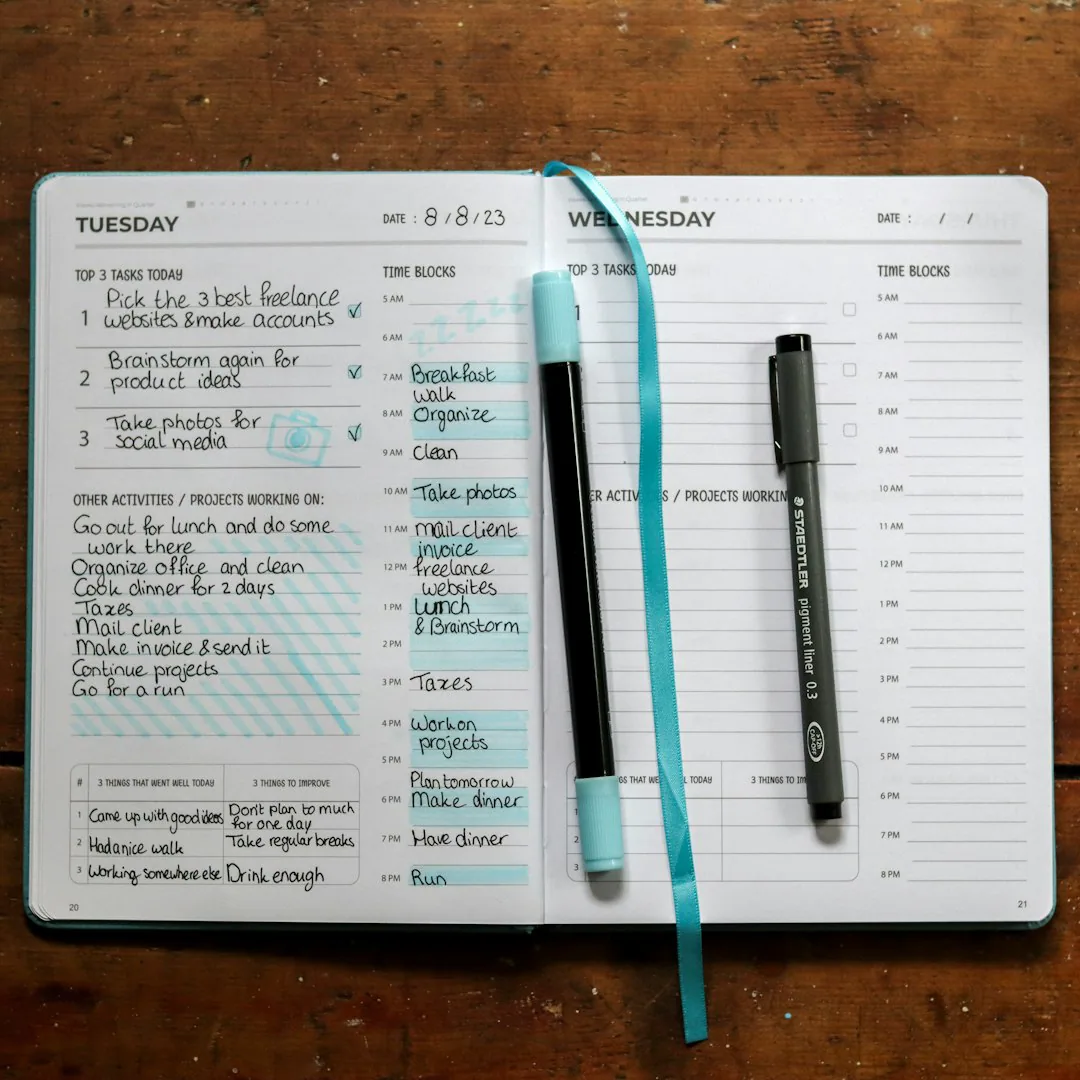
Step 2: Capture Everything, Then Let AI Do the Sorting
Here's the mindset shift that made the biggest difference for me: stop trying to organize as you write. Just dump. Voice memo on your commute, quick typed note between meetings, forwarded email — everything goes into one inbox.
Then, once a day (I do it at 4:30pm), I open the app and ask the AI assistant something like "summarize everything I captured today and pull out any tasks or deadlines mentioned." Most modern apps will return a clean summary with bulleted action items. What used to take me twenty minutes of re-reading now takes ninety seconds of reviewing.
A real example from my week
Last Tuesday I had back-to-back calls from 9 to 1. By the end I had raw notes from four meetings — roughly 2,000 words of fragments. I asked Notion AI to summarize each meeting and extract commitments. It flagged that I'd promised a client a revised proposal by Thursday, something I honestly would have forgotten in the noise. That one catch paid for the subscription several times over.
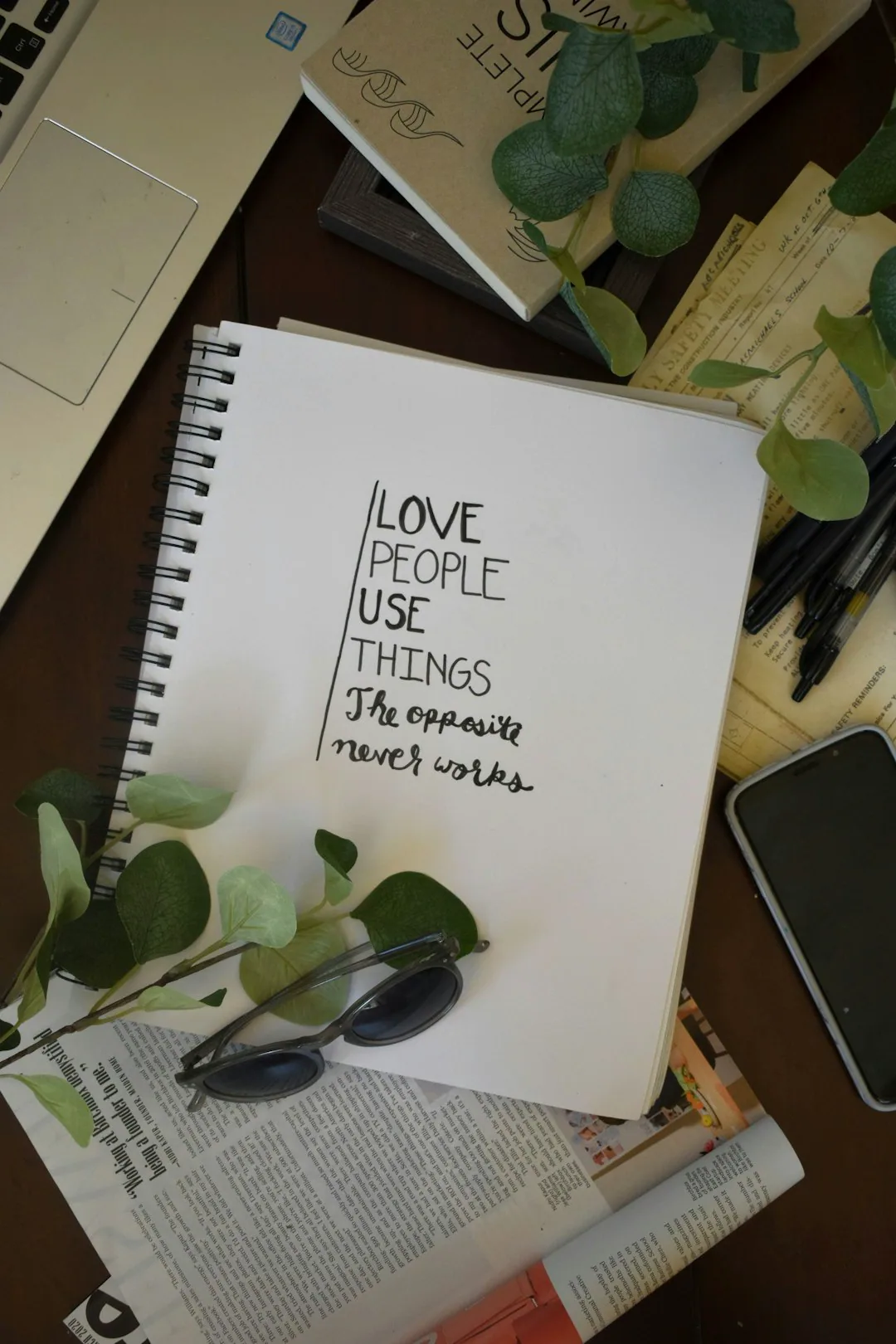
Step 3: Turn Notes Into a Prioritized Daily Task List
Notes without action are just digital hoarding. The trick is using AI to bridge capture and execution.
My morning routine takes about ten minutes. I ask the AI: "Based on my notes from this week, what tasks are due or overdue, and which ones look most urgent?" Then I cross-check against my calendar. The AI isn't perfect at judging urgency — no system is — but it's remarkably good at making sure nothing slips through, and it consistently surprises me by connecting things I hadn't. Once it reminded me that a task from a note two weeks earlier depended on a deliverable due that same day. I hadn't connected those dots myself.
Using AI for daily planning without losing control
One warning: don't let the AI fully automate your prioritization. I tried that for a month, letting an app schedule my day, and it produced a technically efficient but soul-crushing schedule with no buffer time. Treat AI suggestions as a draft. You're the editor. The best workflow I've found is AI proposes, you dispose — it saves the cognitive load of starting from a blank page, but you keep final say.
Step 4: Build a Weekly Review Habit (This Is Where It Clicks)
The daily workflow only stays clean if you do a weekly reset. Every Friday, I ask the AI to summarize my week: what got done, what carried over, what themes emerged across meetings. It takes fifteen minutes and it's honestly become the most valuable meeting on my calendar — a meeting with myself, with a very well-read assistant.
This weekly AI summary is also what I bring into Monday planning. Instead of reconstructing context from memory, I start the week with a digest. That context continuity is the single biggest productivity gain I've experienced, bigger than any individual feature.
Common Mistakes to Avoid
A few pitfalls I hit so you don't have to. Don't use AI summaries as a replacement for actually reading important documents — the AI can flatten nuance, and I once almost missed a contractual detail because I'd only read the summary. Don't put sensitive client data into tools without checking their privacy policies; some train models on your notes unless you opt out. And don't over-structure your system — the moment maintaining your note setup takes longer than the work itself, simplify ruthlessly.
The Bottom Line
Using AI note-taking apps to organize daily work tasks isn't about fancy automation. It's about three habits: capture freely, let AI process, and review consistently. The technology handles the tedious middle — summarizing, extracting, connecting — while you keep the judgment calls. Two years in, I spend less time managing my tasks than ever, and I drop fewer balls. That's the whole promise, and in my experience, it actually delivers.
参考链接
- Best AI Note-Taking Apps for Productivity in 2025: A Comparison Guide
- How to Automate Meeting Summaries and Action Items with Notion AI
- A Beginner's Guide to AI-Powered Task Management Workflows
- Notion AI vs. Mem vs. Reflect: Which AI Note App Fits Your Workflow?
- Privacy Considerations When Using AI Note-Taking Tools at Work