For home office work, a 34-inch curved ultrawide can replace dual monitors and reduce window switching, but only if you choose the right resolution, panel, and USB-C docking features. This guide covers selection criteria rather than a ranked model list, because I don’t have enough verified model-specific test data to compare individual units. The most important note: prioritize 3440×1440 resolution, comfortable curvature, and reliable USB-C power delivery over pixel density or high refresh rates. Use this as a checklist; confirm final specs on the manufacturer’s product page.
The Short Answer
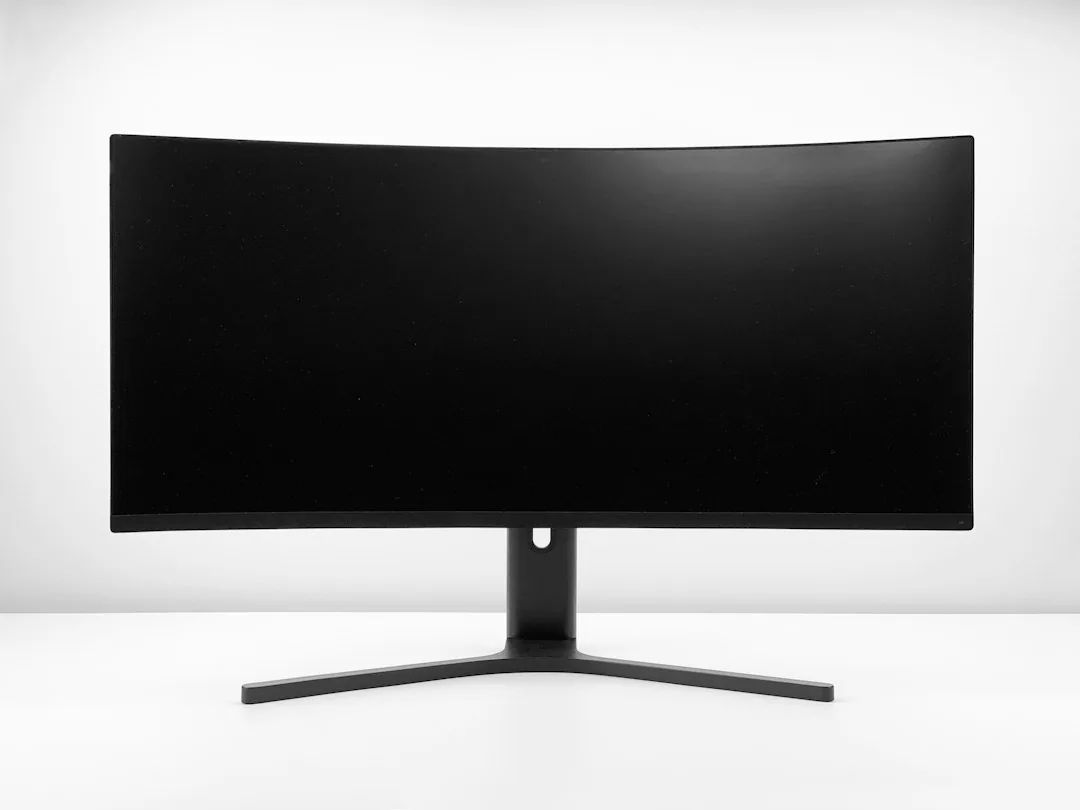
The practical sweet spot for home office productivity is a 34-inch ultrawide with 3440×1440 resolution, 60–100 Hz, a 1500R–1900R curve, IPS or quality VA panel, and USB-C with at least 65 W charging. That combination gives enough width for two or three documents side by side without excessive pixel density demands. A price check on Taobao/Tmall for “curved monitor” on 2026-11-22 showed listings from about ¥1,117 to ¥6,399, with a median around ¥1,999, but price alone doesn’t indicate productivity suitability. Avoid buying based only on curve size or gaming specs.
How to Choose / What to Do
Check resolution before anything else
A 34-inch ultrawide should have 3440×1440 (21:9). If a listing says “34-inch curved” but resolution is 2560×1080, text will look softer and you may lose the productivity benefit. For long document reading and spreadsheets, 3440×1440 is the baseline. If you connect to a Mac, verify scaling support because macOS may render 3440×1440 at non-integer scaling on some setups.
Panel type: IPS vs VA for office work
IPS usually has better viewing angles and more consistent color, which helps if you share the screen or do light design work. VA often has higher contrast and deeper blacks but can show more motion smearing; for mostly static office work this matters less. If you need accurate color for design, look for coverage claims such as sRGB or DCI-P3 measured by the manufacturer, and verify with reviews if possible.
Curvature: less is often more for productivity
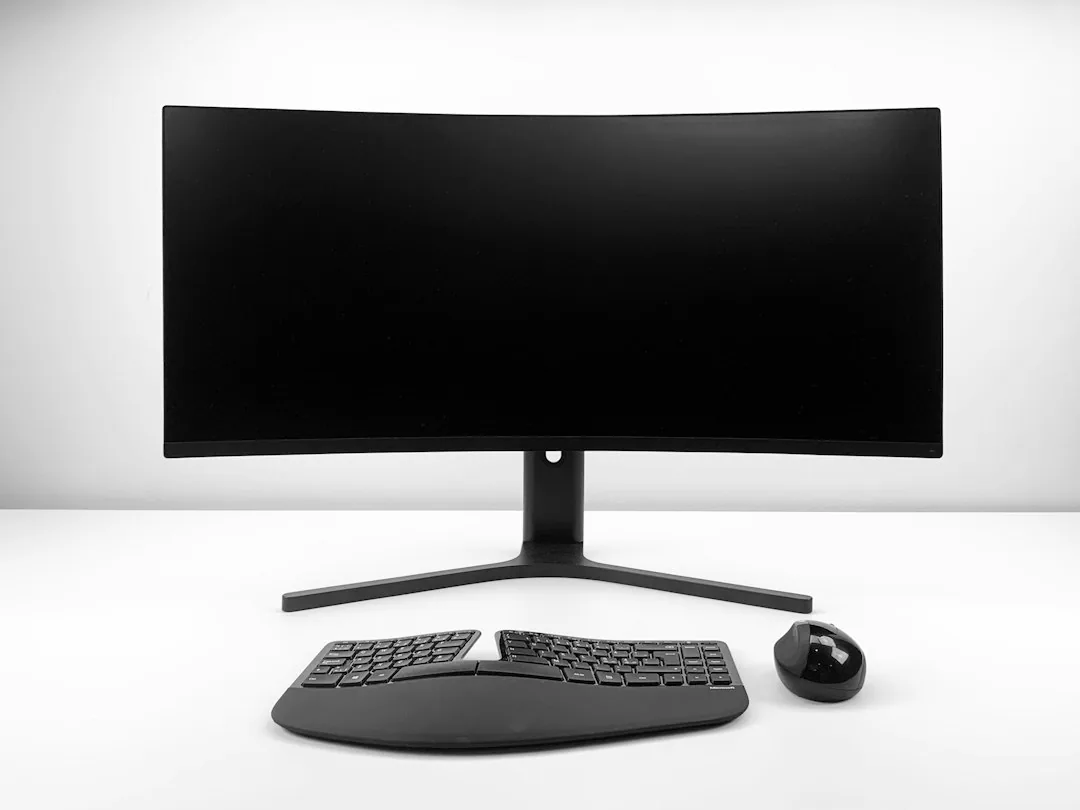
Gentler curves like 1900R or 1800R are easier for text and spreadsheets; tighter curves like 1000R are aimed at gaming immersion and can distort straight lines at the edges. A 1500R–1900R range is a reasonable middle ground for a 34-inch desk monitor.
USB-C and connectivity
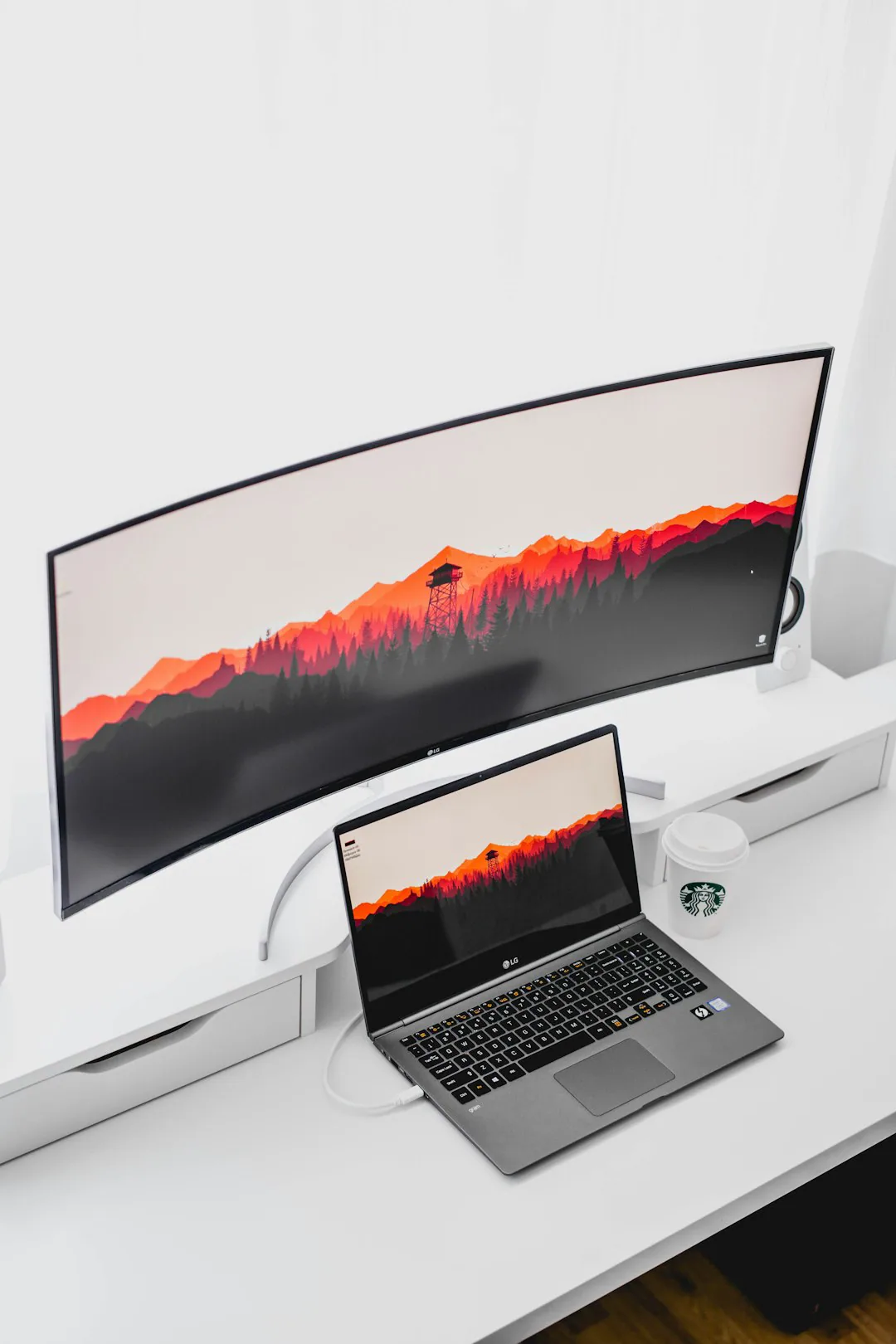
If you use a laptop, a monitor with USB-C Power Delivery can charge the laptop and carry video/data over one cable. Check that the wattage matches your laptop’s needs; 65 W is enough for many ultrabooks, but larger laptops may need 90 W or more. Also confirm the USB-C port supports DisplayPort Alt Mode, not just data.
Ergonomics and daily comfort
Look for height adjustment, tilt, and preferably swivel. A fixed stand that places the monitor too low can negate the benefit of a large screen. Flicker-free backlight and low blue light modes are common, but their effect varies; if you get headaches, these may be worth trying, not a guaranteed fix.
Common Mistakes and Limitations
Don’t assume a high refresh rate improves productivity: 144 Hz or 240 Hz is for gaming and adds cost, not text clarity. Don’t buy a 34-inch curved 1080p ultrawide just because it’s cheap; the lower pixel density is visible at typical desk distances. Don’t expect one monitor to solve posture or eye strain by itself—stand height, room lighting, and viewing distance matter more. This guide does not rank specific units, and the Taobao/Tmall price snapshot is not a product endorsement or a full market survey. Some “curved monitor” listings in that search may include non-ultrawide or lower-resolution models, so filter by exact specs rather than price.

FAQ
Is a 34-inch curved monitor worth it for office work?
It can replace two 24-inch monitors if you get 3440×1440 and use window snapping. The curve is less important than resolution and stand ergonomics for text work.
What curvature is best for productivity?
For 34-inch ultrawides, 1500R–1900R is a common compromise. Tighter 1000R curves are usually designed for gaming and can make straight lines appear bowing in documents.

Do I need USB-C on a home office monitor?
Only if you want one-cable laptop charging and video. Otherwise HDMI or DisplayPort works fine. Check Power Delivery wattage before buying.
Can I use a 34-inch curved monitor with a Mac?
Most 3440×1440 displays work, but macOS scaling can make text smaller or less sharp on some models. Look for manufacturer’s macOS compatibility notes or user reports.

Why not just buy the cheapest curved monitor?
Cheaper listings may be 2560×1080, have poor stands, or lack USB-C. The Taobao/Tmall snapshot on 2026-11-22 showed prices starting around ¥1,117, but you need to verify resolution, panel, and ports before assuming it’s suitable.
References
- Taobao/Tmall search results for “curved monitor” — price reference only, as of 2026-11-22
- RTINGS monitor reviews and measurements